

Launching a new website is a massive milestone! Branding? Sorted. Copy? Spot on. But if you haven’t optimised your images before hitting publish, all that hard work is going straight down the drain.
Let’s face it: we’re an impatient bunch. If your site takes more than three seconds to load, up to 53% of mobile users will bounce straight to a competitor.
Worse still, Google is watching. Search engines actively penalise sluggish sites. Those massive, unoptimised photos are annoying your visitors AND they’re tanking your SEO, hiding your shiny new website from the world.
Yes, Size Matters…
Website speed is absolutely critical. It’s the foundation of a good user experience and a successful digital marketing strategy.
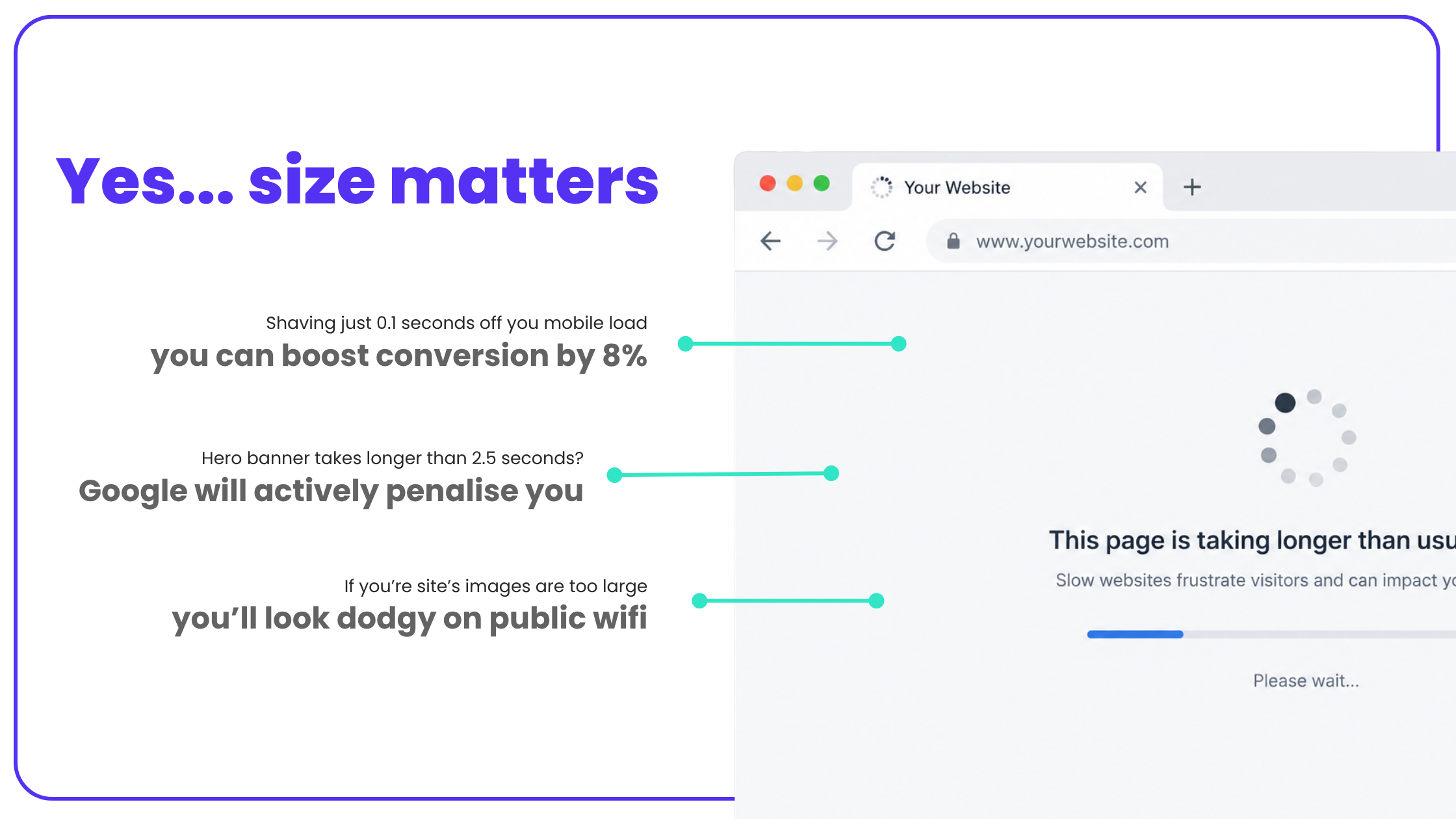
- Speed equals sales: Heavy images slow you down, and slow sites kill conversions. The proof? Shaving just 0.1 seconds off your mobile load time can boost your conversion rate by over 8%.
- Google is judging you: Google tracks your ‘Largest Contentful Paint’ (LCP). If your hero banner takes longer than 2.5 seconds to show up, Google will actively penalise your search rankings.
- Data wastage: Not everyone is surfing on lightning-fast 5G. Massive images chew through mobile data and frustrate people on dodgy connections. Keep your files light so your site actually works for everyone.
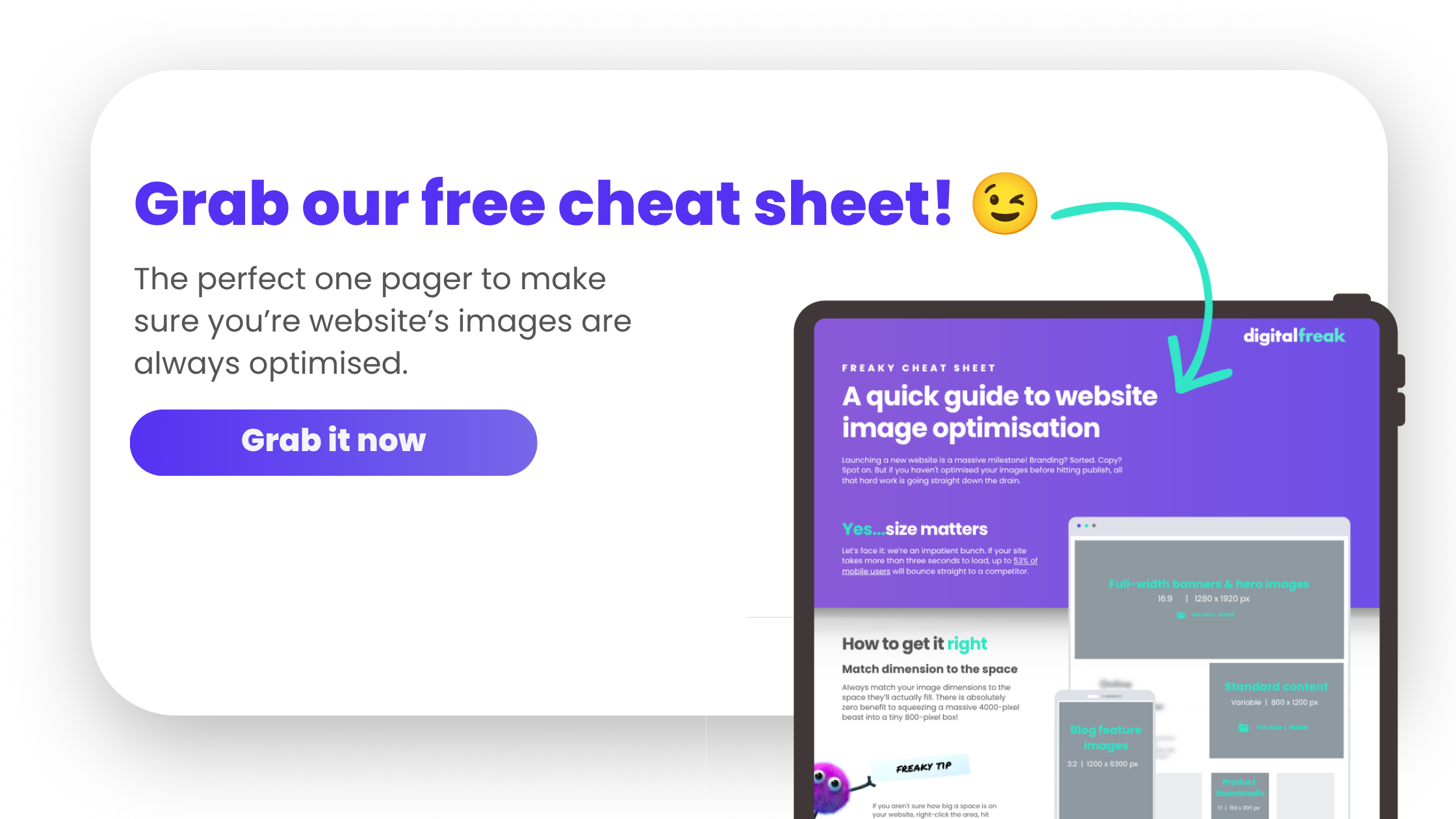
Web Image Size Cheat Sheet
Always match your image dimensions to the space they’ll actually fill. There is absolutely zero benefit to squeezing a massive 4000-pixel beast into a tiny 800-pixel box!
| Website Element | Ideal Dimensions (pixels) | Aspect Ratio | Target File Weight |
| Full-width banners & hero images | 1280–1920 wide | 16:9 | ≤ 200KB |
| Blog featured images | 1200 x 630 | 3:2 | ≤ 100KB |
| Product thumbnails | 150–300 square | 1:1 | ≤ 80KB |
| Standard content images | 800–1200 wide | Variable | ≤ 100KB |
| Logos (rectangular) | 250 x 150 | 3:2 | ≤ 50KB |
| Logos (square) | 100 x 100 | 1:1 | ≤ 30KB |
| Full-screen backgrounds | 1920 x 1080 | 16:9 | ≤ 200KB |
Note: If you want your images to stay razor-sharp on fancy high-res screens (like Apple’s Retina displays), you can upload them at exactly double the width you need (known as @2x). The catch? You’ll need to compress the absolute life out of that file to keep the weight down and your site speed up!
Dimensions, Ratios, and Weight
To get your images right, you need to master the holy trinity of image sizing:
- Dimensions: The physical width and height (in pixels). Practical tip: If you aren’t sure how big a space is on your website, right-click the area, hit ‘Inspect’, and hover over the container to see the exact pixel width. If the box is 800px wide, resize your image to exactly 800px wide before uploading.
- Aspect Ratio: The shape (like 16:9 widescreen or 1:1 square). Keep these consistent across image carousels or blog grids so your site looks tidy and nobody’s head gets awkwardly chopped off by auto-cropping.
- File Weight: The data size (KB or MB). This is the heavy lifting that slows down your site. Always aim to keep individual images under 100KB, and hero banners under 200KB.
Pick the Right Format
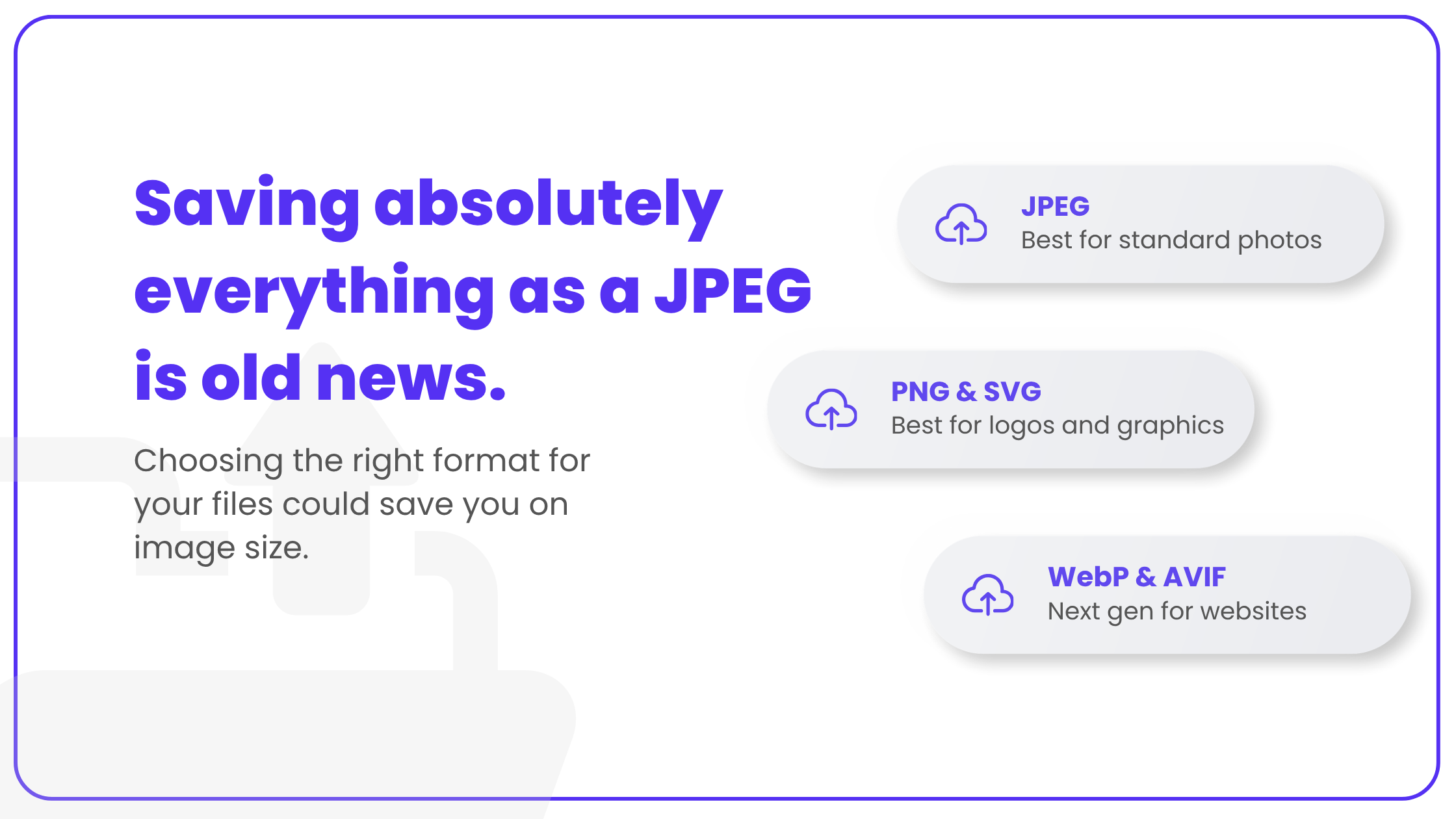
Saving absolutely everything as a JPEG is old news.
- JPEG: Best for standard photos and rich colours. Keep in mind that JPEGs do not support transparent backgrounds.
- PNG & SVG: Best for logos, icons, and crisp graphics with transparent backgrounds. SVGs are brilliant because they use maths instead of pixels, making them infinitely scalable and tiny in file size.
- WebP & AVIF: The next-gen champions. These formats cut file sizes by up to 35% whilst keeping the exact same quality. Practical tip: If you use WordPress, you don’t need to manually save files as WebP. Grab a plugin like ShortPixel or Imagify, and it will automatically convert your images as you upload them.
The Weight Loss Programme
You can usually shrink a file’s weight by 70–80% before the human eye notices any drop in quality.
- Lossy vs. Lossless: Lossy compression drops unnoticeable data (perfect for photos). Lossless drops hidden background data but keeps the image exact (perfect for crisp graphics).
- Strip EXIF Data: Your smartphone and digital camera hide GPS locations, dates, and exposure data in every single photo. Strip it out. Your visitors don’t need it and it’s just dead weight slowing down your page.
Advanced Speed Tactics
Want lightning-fast loading? You need these three running in the background:
- Lazy Loading: Tells a browser to wait and load images only when the user actually scrolls down to see them. Practical tip: If you are on WordPress, popular caching plugins like WP Rocket or Smush can turn on lazy loading with a single click.
- Responsive Images (srcset): Automatically serves a smaller, lighter file to mobile users, saving their mobile data and loading instantly.
- Content Delivery Network (CDN): Stores copies of your images on servers globally. This means a customer in London downloads your images from a UK server, rather than waiting for them to travel all the way from your host server in Melbourne. Cloudflare is a brilliant, free starting point for this.
Audit Your Current Setup
Stop guessing and start testing. Use these free tools to spot the exact files bogging you down:
- Google PageSpeed Insights: Run your URL through this tool and scroll down to the ‘Opportunities’ section. Look for warnings like ‘Serve images in next-gen formats’ or ‘Properly size images’. It will list the exact images causing the bottleneck.
- GTmetrix: Provides a brilliant waterfall chart showing exactly how many milliseconds each image takes to load.
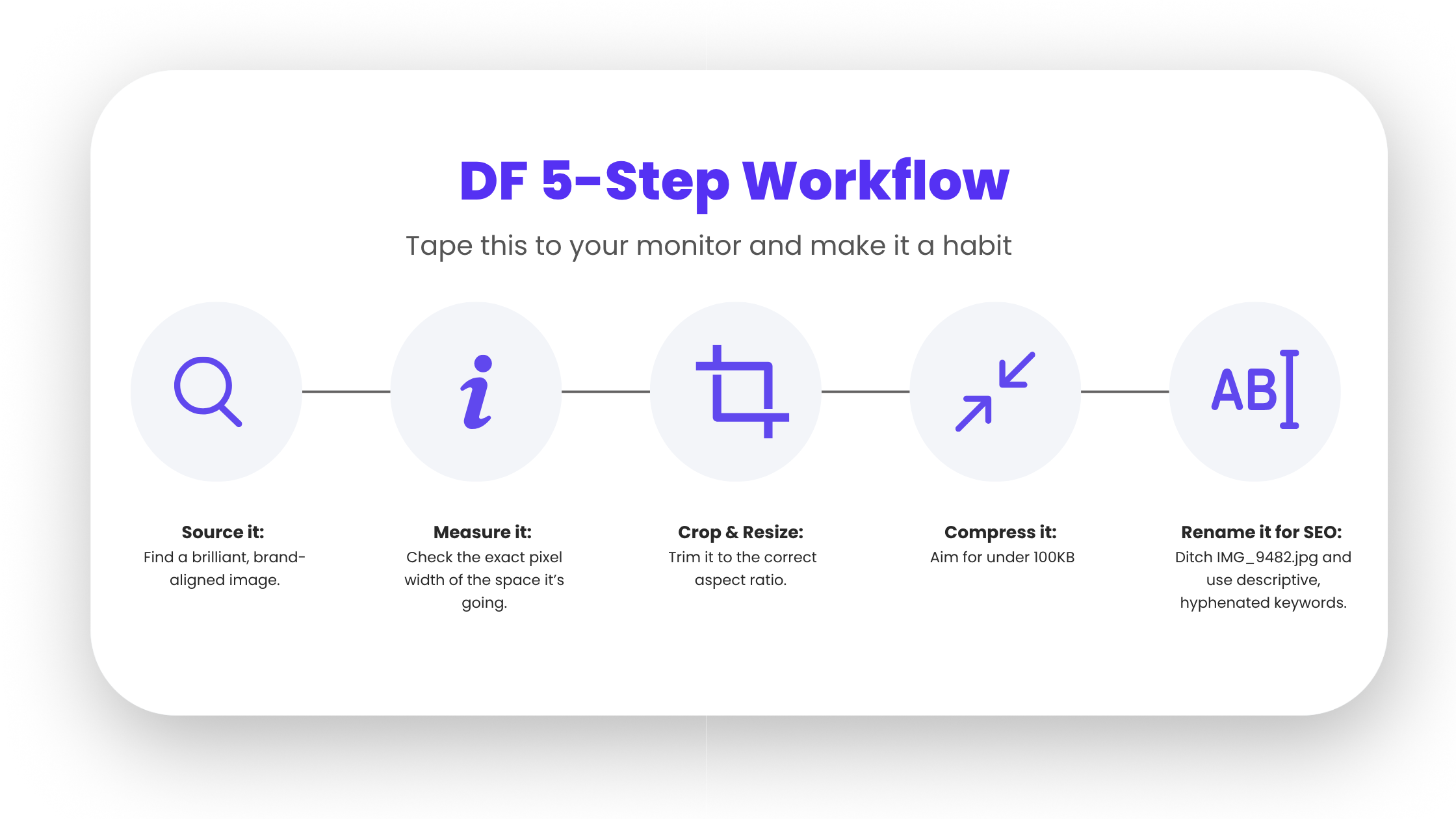
The Digital Freak 5-Step Workflow
Tape this to your monitor and make it a habit every time you upload an image:
- Source it: Find a brilliant, brand-aligned image.
- Measure it: Check the exact pixel width of the space it’s going into on your website.
- Crop & Resize: Trim it to the correct aspect ratio and resize the width to match step two.
- Compress it: Run the file through a compression tool to squash the file weight down (aim for under 100KB).
- Rename it for SEO: Google cannot ‘see’ pictures, but it does read file names. Ditch IMG_9482.jpg and use descriptive, hyphenated keywords like melbourne-web-design-team.jpg.
The Best Tools for the Job
You don’t need an expensive Adobe subscription to get this right. Try these practical tools:
- Canva: Perfect for quick resizing. Create a custom canvas at your exact required dimensions, drop your photo in, and export.
- ShortPixel: A brilliant WordPress plugin that automates compression and converts everything to WebP on autopilot.
- TinyPNG: The easiest manual tool. Just drag, drop, and aggressively compress your JPEGs and PNGs for free before you upload them to your site.
- ImageOptim: A great, free Mac app for instantly stripping out EXIF data and bloat.

Need a hand getting your website up to speed?
Optimising your website images is one of the highest-return activities you can do, because even small improvements have great returns!
The team at Digital Freak is always here to help you build a brilliant, fast, and beautifully optimised digital presence. Get in touch with us today, and let’s get your business moving.

When clients work with me, they get exactly what they want - no-nonsense, authentic digital marketing that works! With my industry experience, eye for detail, and a team that goes the extra mile, every client gets the personalised, expert treatment they deserve. Let’s get you online – and growing!